
How to Demo a Script Before Installing with Softaculous
View Demos Within cPanel
- Log in to your cPanel.
- Navigate to the “Software” section and click on “Softaculous Apps Installer.”
- From the left-hand menu, select your desired script from the available categories.
- On the script’s page, click the Demo tab.
- Softaculous will launch the demo version of the script.
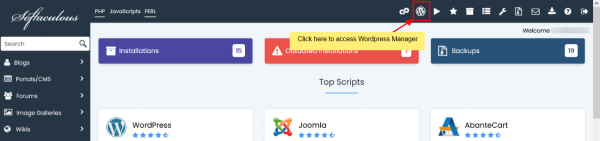
- Log in to your cPanel.
- Navigate to the “Software” section and click on “Softaculous Apps Installer.”
- At the top, click the “Script Demos” icon.
- A new window will open displaying available script logos.
- Click on a script’s logo to view its demo.